
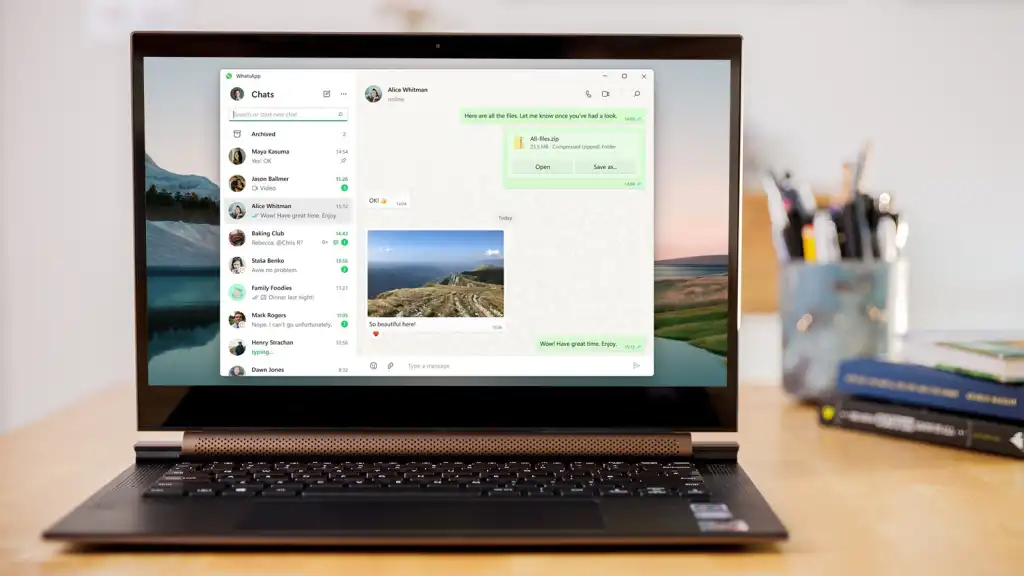
Do you want to use WhatsApp on your computer instead of checking your phone again and again? If yes, web whatsapp on desktop is a useful solution. It allows you to send messages, share pictures, receive documents, and communicate with friends directly from your computer. You do not need to hold your smartphone every time someone sends you a message. Instead, you can open WhatsApp in your browser and manage your conversations from one place. This makes communication easier, especially when you spend many hours working or studying on a computer.
WhatsApp has become one of the most popular messaging platforms in the world. Millions of people use it every day to stay connected with family, friends, customers, and coworkers. However, typing long messages on a small phone screen can sometimes feel uncomfortable. A computer offers a larger screen and a full keyboard, so you can write messages more quickly. Furthermore, you can share files directly from your computer without moving them to your phone first.
The best thing about WhatsApp Web is that it does not require complicated technical knowledge. Almost anyone can connect their account by following a few simple steps. You only need an internet connection, a supported web browser, and an active WhatsApp account. In this complete guide, you will learn how to open WhatsApp on your desktop, understand its features, solve common problems, and protect your private conversations.
What Is Web WhatsApp on Desktop?
Web WhatsApp on desktop is a service that allows people to access their WhatsApp accounts through a computer browser. It provides a simple way to manage conversations without using the phone for every activity. You can open the official WhatsApp website, connect your account, and start chatting from your computer. Once connected, your available conversations appear on the screen, making it easier to read and answer messages.
WhatsApp Web works with popular browsers such as Google Chrome, Microsoft Edge, Firefox, and Safari. You do not need to install a special browser extension to use the official service. Instead, you visit the WhatsApp Web website and scan a QR code using your phone. This process connects your computer with your WhatsApp account. After that, you can send messages, share supported files, and enjoy many familiar WhatsApp features.
WhatsApp also provides a separate desktop application for Windows and macOS. This application gives users another way to access their accounts from computers. However, WhatsApp Web and the desktop application are different options. The web version works inside your browser, while the desktop version requires you to install an application. Both options can make computer-based communication easier.
Why Do People Use Web WhatsApp on Desktop?
Many people spend a large part of their day using computers. They may work in offices, attend online classes, manage websites, or complete personal projects. Checking a phone after every notification can interrupt their activities and waste valuable time. Web WhatsApp on desktop helps reduce these interruptions because users can read and answer messages directly from their computer. As a result, they can stay connected while continuing their regular work.
Another important reason is typing comfort. A computer keyboard makes it easier to write long messages, answer customer questions, and share detailed information. Moreover, a larger screen helps users read conversations without constantly zooming in. People can also open documents and pictures stored on their computers and share them through WhatsApp. This makes the service useful for students, office workers, families, and small business owners.
Here are some popular reasons people choose this service:
- Easy typing: A physical keyboard helps you write messages faster and more comfortably.
- Larger screen: You can read conversations and view shared content more easily.
- Simple file sharing: You can send documents and pictures directly from your computer.
- Better multitasking: You can chat while working on other computer activities.
- Convenient communication: You can manage conversations without constantly switching devices.
- Useful for businesses: You can answer customer questions while managing other tasks.
How to Open Web WhatsApp on Desktop
Opening WhatsApp Web is simple, even if you have never used it before. You do not need special computer skills or complicated software. First, prepare your computer and smartphone. Make sure both devices have access to the internet. Then follow the steps below to connect your WhatsApp account safely.
Open Your Web Browser
First, turn on your computer and open your preferred internet browser. Google Chrome, Microsoft Edge, Firefox, and Safari are popular choices. Make sure your browser works properly and has an active internet connection. If you are using an older browser, updating it can help prevent loading and compatibility problems.
Visit the Official WhatsApp Website
Next, type the official WhatsApp Web address into your browser’s address bar:
Press Enter to open the website. You should see the WhatsApp Web page with a QR code or another available linking option. Always check the website address carefully before connecting your account. Fake websites may look similar to the real service, but they can put your personal information at risk.
Find the QR Code
After opening the website, look for the QR code displayed on your computer screen. This code helps connect your smartphone to your computer. Keep the page open because you will need to scan the code using your phone. If the code does not appear, refresh the page or check your internet connection.
Open WhatsApp on Your Smartphone
Now pick up your smartphone and open WhatsApp. On Android devices, tap the three-dot menu and select Linked Devices. On an iPhone, open WhatsApp Settings and choose Linked Devices. The exact appearance may change slightly depending on your phone and WhatsApp version, but the linking option should remain easy to find.
Link Your Computer
Tap the option to link a device. Your phone may ask you to confirm your identity through your fingerprint, face recognition, or screen lock. After that, point your phone camera toward the QR code on your computer. Keep the camera steady until WhatsApp reads the code and completes the connection.
Start Using WhatsApp
Once the connection finishes, your available conversations should appear on your computer screen. You can select a contact, open a group, and start sending messages. You can also share supported documents, pictures, and other files. Now you can enjoy web whatsapp on desktop without installing a separate browser extension.
Main Features of Web WhatsApp on Desktop
WhatsApp Web offers several useful features that make computer-based communication simple. It provides many familiar tools that people already use on their smartphones. These features help users send messages, share files, find old conversations, and communicate with groups. Although some features may differ from the mobile application, the web version is useful for everyday messaging.
Send and Receive Messages
Messaging is the main reason people use WhatsApp. With the desktop version, you can open a conversation and type a message using your computer keyboard. You can send short replies, write detailed explanations, or discuss important topics with friends and coworkers. Furthermore, you can read incoming messages on a larger screen, which makes long conversations easier to follow.
Share Photos and Videos
WhatsApp Web allows users to share supported photos and videos from their computers. For example, you can send family pictures, school project images, product photographs, and other media files. This feature is especially helpful when your pictures already exist on your computer. You do not have to transfer every file to your phone before sharing it with another person.
Send Documents and Files
Another helpful feature is document sharing. Students can send assignments, while office workers can share reports and presentations. Business owners can also exchange invoices, product information, and other important files. Simply open a conversation, select the attachment option, and choose a supported file from your computer. However, remember that WhatsApp has file size and format limits.
Record and Send Voice Messages
Sometimes, speaking is easier than typing. WhatsApp Web supports voice messaging on compatible browsers and devices. You can use your computer’s microphone to record a message and send it to another person. This feature is helpful when you want to explain something quickly or share information while your hands are busy. Make sure your browser has permission to access your microphone.
Search Old Messages
Finding an old message can become difficult when you have hundreds of conversations. Fortunately, WhatsApp includes search tools that help you locate specific words and phrases. You can use these tools to find an address, phone number, meeting detail, or shared document. This saves time and makes it easier to return to important information without scrolling through every conversation.
Use Emojis and Stickers
Emojis and stickers make conversations more interesting and friendly. You can use a smile, heart, or laughing emoji to express your feelings. Stickers also help you respond in a fun way without writing a long message. These small features make everyday conversations feel more natural, especially when you are chatting with family and close friends.
Manage Group Conversations
Group chats allow several people to communicate in one place. With WhatsApp Web, you can read group messages, share supported files, and reply to other members. This feature is useful for school groups, family discussions, office teams, and community activities. Instead of checking your phone repeatedly, you can follow group conversations while working on your computer.
Web WhatsApp on Desktop for Students
Students can use WhatsApp Web to make communication with classmates and teachers easier. Many schools and colleges use messaging groups to share announcements, homework details, class schedules, and study materials. A student can open these conversations on a computer and read important information while working on an assignment. The larger screen also makes it more comfortable to review long messages and shared documents.
Another benefit is easy file sharing. Students often need to exchange PDFs, presentations, pictures, and other learning materials. When these files are already saved on a computer, they can share them directly through WhatsApp Web. This saves time because they do not need to move every document to their smartphone. Furthermore, a physical keyboard makes it easier to write detailed explanations and discuss school projects.
However, students should use the service wisely. Too many notifications can interrupt learning and reduce concentration. Therefore, it is helpful to mute unnecessary groups and keep important conversations easy to find. Students should also avoid sharing private information with unknown people. When used responsibly, web whatsapp on desktop can become a useful communication tool for everyday learning.
Web WhatsApp on Desktop for Business
Small businesses can benefit from using WhatsApp on a computer. Business owners often receive questions about products, prices, delivery services, and customer support. Answering every question on a smartphone can take a lot of time. A computer keyboard makes it easier to write clear replies and manage several conversations during the working day. It also allows business owners to access files stored on their computers.
For example, an online store can share product pictures, price lists, and order information with customers. A service provider can discuss appointments and send important documents. Similarly, a small office can use group conversations to communicate with team members. These activities help businesses stay connected with customers and workers without making communication unnecessarily complicated.
Here are some common business activities you can manage:
- Answer customer questions about products and services.
- Share product photographs and information.
- Send available price lists and documents.
- Discuss customer orders and delivery details.
- Exchange invoices and business files.
- Communicate with employees and team members.
- Provide updates about services and appointments.
WhatsApp Business also offers additional tools for businesses that need more customer management features. These can include business profiles, product catalogs, and messaging tools, depending on the account and available features. However, businesses should remember that customer privacy matters. They should protect personal information and avoid sending unwanted messages.
Difference Between WhatsApp Web and WhatsApp Desktop App
WhatsApp Web and the WhatsApp desktop application both allow users to communicate through a computer. However, they work in slightly different ways. WhatsApp Web runs inside an internet browser, while the desktop application requires installation on your computer. Both options connect with your WhatsApp account and provide access to many familiar messaging features.
The web version is a good choice for people who do not want to install additional software. You can simply open a browser, visit the official website, and connect your account. On the other hand, the desktop application may suit people who use WhatsApp regularly and prefer opening a dedicated computer program.
Here is a simple comparison:
| Feature | WhatsApp Web | Desktop App |
| Installation | Not required | Required |
| Access | Through a browser | Through an application |
| Messaging | Available | Available |
| File sharing | Available | Available |
| Computer keyboard | Supported | Supported |
| Internet connection | Required | Required |
| Updates | Browser-based service | Application updates |
Your choice depends on your daily needs. If you use WhatsApp occasionally, the web version may be enough. However, if you prefer a dedicated application, you can explore the official desktop download.
How to Log Out of Web WhatsApp on Desktop
Logging out is important when you use a shared or public computer. It helps prevent other people from opening your conversations after you leave. Fortunately, WhatsApp makes this process simple. Open WhatsApp Web on your computer, find the menu or settings options, and select Log Out. The exact location may depend on the current interface.
You can also manage connected computers through your smartphone. Open WhatsApp, visit Linked Devices, and review the devices connected to your account. Select the computer you want to disconnect and choose the log-out option. This is especially useful if you forget to sign out before leaving an office, library, or friend’s computer.
Always make logging out part of your routine when using a device that other people can access. Never assume that closing the browser automatically protects your account. Taking a few extra seconds to disconnect can help keep your private conversations safe.
Is Web WhatsApp on Desktop Safe?
Many people want to know whether using WhatsApp on a computer is safe. In general, the official WhatsApp Web service offers security features designed to protect conversations. WhatsApp uses end-to-end encryption for personal messages and calls. This means that messages remain protected during communication between the participants.
However, your own computer habits also matter. If you use an unknown computer or visit a fake WhatsApp website, you may put your account at risk. Therefore, always use the official website and avoid suspicious links. You should also keep your browser and computer updated to reduce security problems.
Here are some simple safety tips:
Always visit the official WhatsApp Web website.
- Never scan a QR code from an unknown source.
- Do not share your account verification codes.
- Check your linked devices regularly.
- Log out from computers you no longer use.
- Protect your computer with a strong password.
- Avoid opening suspicious links sent by strangers.
These simple habits can make web whatsapp on desktop safer for everyday communication. Remember, protecting your account is just as important as enjoying its features.
Common Problems with Web WhatsApp on Desktop
Sometimes WhatsApp Web may not work as expected. The website might fail to load, messages may not appear, or the QR code may not scan correctly. Most of these problems have simple solutions. Before trying complicated steps, check your internet connection and make sure you are using the official website.
QR Code Is Not Scanning
If your phone cannot scan the QR code, first clean your camera lens. Make sure the code appears clearly on your computer screen. You can also increase your screen brightness and move your phone closer to the code. If the problem continues, refresh the WhatsApp Web page and try again.
WhatsApp Web Is Not Loading
A slow internet connection can prevent the website from opening correctly. First, check whether other websites work on your computer. If they do not, restart your internet connection. You can also close and reopen your browser. Updating the browser may help if the problem comes from an outdated version.
Messages Are Not Sending
Sometimes messages may remain stuck while sending. This can happen because of a weak internet connection or a temporary service problem. Check your connection on both devices and wait a few moments. If the issue continues, refresh the page and try sending the message again.
Files Are Not Uploading
Large files or unsupported formats may cause upload problems. Check the file size and make sure WhatsApp supports the format. You can also try selecting the file again or restarting your browser. If you are using a work computer, certain security settings may also block file uploads.
WhatsApp Keeps Disconnecting
Repeated disconnections may happen because of network problems, browser issues, or account settings. Check your linked devices and confirm that your computer still appears in the list. If necessary, remove the connection and link the computer again by scanning a fresh QR code.
Tips to Get the Best Experience
You can improve your WhatsApp Web experience by following a few simple habits. First, use a reliable internet connection because messaging and file sharing depend on stable access. A modern browser can also help the website run smoothly. Furthermore, keeping your computer updated can reduce unexpected errors and improve general performance.
Organizing your conversations is another helpful idea. You can archive chats that you do not need to see every day. You can also pin important conversations when the feature is available. This makes it easier to find messages from family, customers, or coworkers. In addition, use search tools instead of scrolling through long chat histories.
Finally, protect your account and avoid unnecessary distractions. Mute groups that send too many notifications, log out from shared computers, and review connected devices regularly. These small steps can help you enjoy web whatsapp on desktop while keeping your computer activities organized.
FAQS
1. Can I use WhatsApp Web without installing an application?
Yes. You can use WhatsApp Web directly through a supported internet browser. Visit the official website and connect your account by following the linking instructions.
2. Do I need my phone to connect WhatsApp Web?
You need your phone to link your account initially. After linking, WhatsApp supports multiple connected devices, so your phone does not need to stay continuously connected to the internet.
3. Can I send pictures through WhatsApp Web?
Yes. You can select supported pictures from your computer and share them with individual contacts or groups. You can also send supported videos and documents.
4. Is WhatsApp Web free to use?
Yes. WhatsApp Web is free to use. However, your internet provider may charge you for the data you use to access the service.
5. Can I use WhatsApp Web on more than one computer?
Yes. WhatsApp supports linking multiple devices to one account, within its current device limit. You can manage connected devices through the Linked Devices section on your phone.
Conclusion
Web WhatsApp on desktop is a convenient way to communicate with people through your computer. It offers useful features such as messaging, file sharing, group conversations, voice messages, and message searching. These tools make everyday communication easier for students, families, office workers, and business owners. Moreover, the larger screen and physical keyboard provide a comfortable way to manage long conversations.
Setting up the service does not take much time. You only need to visit the official WhatsApp Web website, open Linked Devices on your phone, and scan the QR code. After connecting your account, you can start chatting directly from your computer. You can also use the desktop application if you prefer a dedicated program.
However, always remember to protect your account. Use the official website, check your linked devices, and log out when using shared computers. By following these simple steps, you can enjoy a smooth and safer messaging experience. Whether you want to chat with friends, complete school tasks, or manage business conversations, web whatsapp on desktop can make your daily communication much easier.
